
Troubleshooting
This page is organised by symptom. Each section says how to confirm the cause and what fixes it. Start with Where to look if you do not know yet where the problem is.
Where to look
Section titled “Where to look”| What | How |
|---|---|
| System health | Settings › System shows go2rtc, storage, Home Assistant and weather status, and per camera: live, recording, today’s coverage and when the last segment arrived. A ↻ badge next to a camera counts the watchdog’s automatic restarts today. |
| Daemon log | journalctl -u aperture -f (follow) or journalctl -u aperture -b -n 200 --no-pager (since boot) |
| Video broker log | journalctl -u aperture-go2rtc -n 100 --no-pager |
| Discovery log | journalctl -u aperture-discovery -n 50 --no-pager |
| Who changed what | Activity Log in the app (admins) |
| Quick status from the shell | sudo nvrctl status |
| Monitoring | /api/v1/system/health answers without sign-in; /api/v1/system/metrics gives Prometheus metrics to an admin token with the system:read scope |
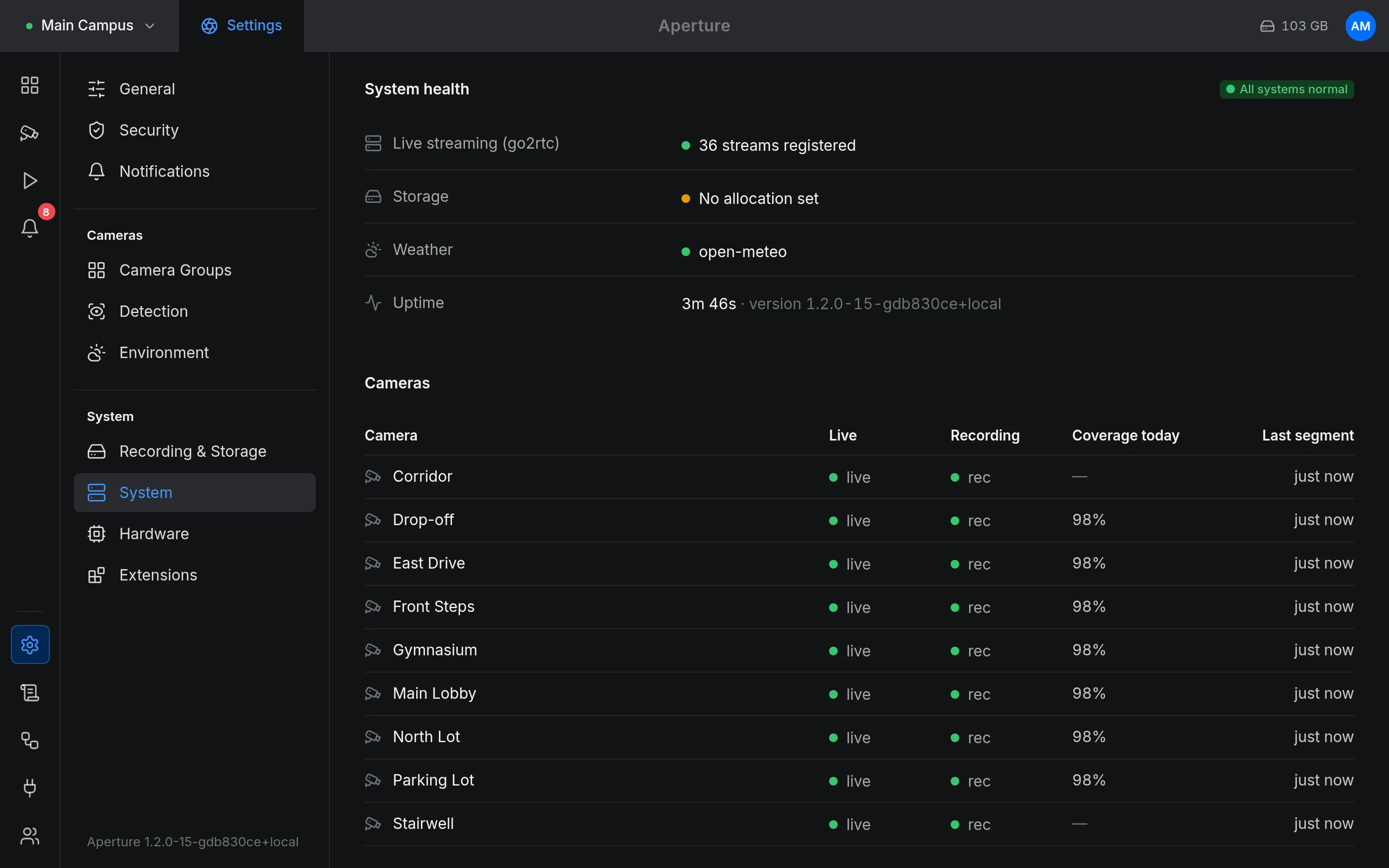
To ask for help, attach a diagnostics bundle: Settings › System, under Maintenance, Download diagnostics. It contains the health snapshot, the last 500 log lines and the version, and no passwords. See Backup and restore for what is in it.
The installer stops
Section titled “The installer stops”deploy/install.sh checks the machine first and stops with a message. The common ones:
| Message | Fix |
|---|---|
avahi-daemon is present |
Remove the package: sudo apt remove avahi-daemon. Disabling or masking it is not enough; the installer checks whether it is installed. See Install. |
port 8971 is already in use (or 1883, 1984, 8554, 8555) |
The message shows the program holding the port. Stop or move it and run make install again. Ports held by Aperture’s own components are fine. |
only x86_64 is supported |
Aperture does not run on ARM. |
bin/nvrd not found or not executable |
The build did not finish. Run make install again and read the first error above this line. |
deno checksum mismatch or go2rtc checksum mismatch |
The download was damaged or replaced on the way, often by a proxy or captive portal. The installer refuses to install it. Check the server’s internet access and try again. |
ffmpeg exited 139 producing an MPEG-TS segment or returned no duration |
The ffmpeg in use cannot do what the recorder needs. Use the distribution’s package (the default): sudo apt install ffmpeg, and do not pass --pin-ffmpeg. |
systemd-sysusers did not create the 'aperture-ext' account or aperture-ext exists but has uid …, expected 65533 |
Another account already uses uid or gid 65533. Free it, then run the installer again. |
The build itself can fail before the installer runs:
- Go too old.
go.modasks for Go 1.25. Checkgo version; install the official build as Install shows. - Node.js too old. The web build needs Node.js 18 or newer (
node --version). - No internet. The build downloads npm packages and Go modules.
The service does not start
Section titled “The service does not start”systemctl status aperture --no-pagerjournalctl -u aperture -b -n 100 --no-pageractivating (auto-restart) in the status means nvrd exits and systemd starts it again every two seconds. It never gives up, so the log shows the same error repeating. Find the first one.
| In the log | Cause and fix |
|---|---|
aperture-harden: FATAL: APERTURE_RECORDINGS_DIR is inside APERTURE_DATA_DIR |
The folders nest, which would delete all footage. Point them at sibling folders in /etc/aperture/aperture.env. See Install. |
aperture-harden: FATAL: …aperture.db exists but secrets.json is missing |
Put secrets.json back from your backup into the data folder. Starting without it would make stored network-share passwords unreadable for good. |
aperture-harden: FATAL: … is not a mountpoint and APERTURE_REQUIRE_REC_MOUNT=1 |
The footage disk did not mount. Check sudo mount -a and /etc/fstab. |
aperture-harden: FATAL: … must contain ONLY the SDK module |
Something was added to /usr/lib/aperture/sdk/. Remove it; extensions can read that folder. |
Failed to load environment files |
/etc/aperture/aperture.env is missing. Copy deploy/aperture.env.example there and set your addresses. |
http server with address already in use |
Another program took port 8971 (or your APERTURE_HTTP_ADDR). |
open store |
The database could not be opened or a migration failed. See Updates; roll back if it started after an update. |
load config with create dir |
A folder in aperture.env cannot be created. The service may write only below /var/lib/aperture. |
Camera tiles are black or “Test connection” fails
Section titled “Camera tiles are black or “Test connection” fails”Work from the camera towards the browser:
-
Is go2rtc running? In Settings › System, the Live streaming (go2rtc) row must be healthy. If not:
systemctl status aperture-go2rtc. When go2rtc is down, every camera is black. -
Does the camera stream at all? Open the same RTSP address in VLC on another computer (Media › Open Network Stream). If VLC cannot play it either, the problem is the camera: RTSP is off (many brands ship with it off), the path is wrong for the brand, or the account is wrong. See Cameras.
-
Can the server reach it? From the server:
Terminal window ping -c 3 192.168.1.21timeout 3 bash -c '</dev/tcp/192.168.1.21/554' && echo "port 554 open" -
Special characters in the password. In an RTSP address the login ends at the last
@and the address part ends at the first/,?or#. A password containing/,?,#,%or a space breaks the address unless you write those characters percent-encoded (%2F,%3F,%23,%25,%20). Some cameras mishandle special characters even then; a password of letters and digits avoids the problem. -
Too many connections. Many cameras allow only a few RTSP sessions at once. Aperture opens one per stream (main and sub) and shares it with recording, detection and every viewer. Another recorder or app pulling directly from the camera can use up the rest.
-
Is the camera enabled? A disabled camera is hidden from the dashboard and playback and shows Disabled in Devices.
A camera counts as offline once no video has arrived from it for 30 seconds, or when it stops answering Aperture’s check for cameras nobody is watching. The log says watchdog: camera offline and watchdog: camera online again.
“Test connection” gives up after 12 seconds and shows the error it got, with the password removed.
H.265 cameras show a black picture
Section titled “H.265 cameras show a black picture”Aperture records H.265 (HEVC) without converting it, and plays it in the browser as it is. Whether the browser can decode H.265 depends on the browser, the operating system and the graphics hardware, so the same camera can play on one device and stay black on another. Recording is not affected.
- Try another browser or device to confirm.
- If the camera can send H.264, switch the stream you watch to H.264 in the camera’s settings. On a phone, the dashboard’s grid view plays the sub stream; the desktop dashboard and the phone’s list view play the main stream.
Live view works at home but not through the reverse proxy
Section titled “Live view works at home but not through the reverse proxy”The proxy must forward WebSocket upgrades and keep the original Host header; HTTPS and remote access lists the symptoms. Two things are expected and not a fault:
- Live view through the proxy takes about five seconds per camera to start: WebRTC cannot connect from outside and the player falls back to MSE through the proxy.
- The RTSP restream (
rtsp://…:8554/…) does not go through the proxy. SetAPERTURE_STREAM_HOSTto the server’s LAN address so Home Assistant and players get an address they can reach.
Footage disappears sooner than expected
Section titled “Footage disappears sooner than expected”Several rules delete footage. Check them in this order:
| Rule | Where it is set | What it does |
|---|---|---|
| Retention | Retention (days) in each camera’s editor (default 7) | Deletes footage older than that. A destination can override it. |
| Motion-only recording | Recording mode | Keeps only footage that overlaps an event; the rest is deleted two minutes after it is recorded. |
| Per-camera quota | storageQuotaBytes on the camera, set through the API (not in the app) |
Deletes that camera’s oldest footage above the quota. |
| Allocation | Settings › Recording & Storage | Deletes the oldest footage when Aperture’s total reaches the allocation. On the default location the database, thumbnails and exports count against it too. |
| Free-space safety net | Automatic, when no allocation is set | Keeps at least 7% of the disk free (at least 5 GiB on all but very small disks) by deleting the oldest footage. |
| Network share safety net | Automatic | Keeps 5 GiB free on a share (a quarter of it on small shares). |
| Upload spool | Automatic | While a network destination is unreachable, each camera spools up to 4 GiB locally (about two hours at 4 Mbit/s). Beyond that the oldest un-uploaded footage is dropped. |
The retention pass runs at start and every five minutes. Footage that an export is rendering or that an API client has leased is not deleted while that lasts. The log reports deletions forced by space: retention: low disk space, retention: network share is nearly full, recorder: spool over cap.
See Storage for how allocations and retention work together.
The disk is full
Section titled “The disk is full”-
Is it really full? With a storage allocation, Aperture keeps a preallocated file,
.aperture-reservation, in the recordings folder. It holds the unused part of the allocation so nothing else can take it, and shrinks as footage grows.dfcounts it as used. It always leaves at least 3 GiB of the filesystem free. That is by design.Terminal window df -h /var/lib/aperture/recordingssudo ls -lh /var/lib/aperture/recordings/.aperture-reservation -
Is the footage disk mounted? If the disk meant for
/var/lib/aperture/recordingsdid not mount, footage goes to the system disk. Checkfindmnt /var/lib/aperture/recordings. SetAPERTURE_REQUIRE_REC_MOUNT=1to make Aperture refuse to start in that case. -
What takes the space?
Terminal window sudo du -sh /var/lib/aperture/* /var/lib/aperture/data/*data/spoolgrows while a network destination is down;data/exportsholds exports for 24 hours, and longer while a share link keeps them (Shared links in the export dialog shows their size);aiholds the object-recognition downloads (the GPU runtime is several gigabytes). -
Footage the database does not know. Retention can only delete what is indexed. If files were copied in by hand or the index was restored from an older backup, click Re-scan under Settings › Recording & Storage; it indexes them so retention manages them again.
Recording has gaps
Section titled “Recording has gaps”In Settings › System, a camera’s Coverage today below 95% shows in orange, and a red rec dot means “should be recording, but no footage is arriving”. Aperture’s watchdog checks every 15 seconds: when a camera that should record has had no new segment for 90 seconds and its recorder has stopped writing, it re-registers the stream and restarts the recorder, at most once a minute per camera. (When only the upload to a network destination fails, the recorder keeps writing to the spool and is left alone.) Each restart adds to the ↻ badge and logs watchdog: recording stale, restarting stream.
Many restarts point at the camera or the network:
- The camera reboots, overheats or drops its connection; check its uptime in its own web page.
- Wi-Fi cameras lose packets; use a cable where you can.
recorder ffmpeg exited; restartingrepeating in the log with the same error shows what the camera sends.- A camera with a Recording quality setting is re-encoded; if that keeps failing, Aperture logs
re-encoding keeps failing, recording the original stream insteadand records the original. - A service at its CPU or memory limit falls behind; see the next section.
A restart of Aperture itself costs a few seconds: the recorders close their segments before it exits.
For alerting, the metrics endpoint has aperture_camera_recording_expected and aperture_camera_recording_ok; alert when the first is 1 and the second 0.
High CPU or a slow web app
Section titled “High CPU or a slow web app”The web app runs in the same service as the recorders, under the same limits (six cores, 5 GB by default). When the service is at its ceiling, everything slows down. Check:
systemctl status aperture --no-pager | grep -E 'Memory|CPU'cat /sys/fs/cgroup/system.slice/aperture.service/cpu.statps -o pid,pcpu,rss,args -C ffmpeg --sort=-pcpu | headA growing nr_throttled in cpu.stat means the CPU quota is holding the service back; memory near MemoryMax means it is swapping. Look at the host’s free or top only after that: the service can be at its limit while the host is idle.
The usual causes, most expensive first:
| Cause | Fix |
|---|---|
| Motion detection on a camera without a sub stream. Aperture decodes the full main stream; a 4K H.265 camera costs more than a core. | Add the camera’s sub stream in its editor (Sub stream (optional, used for motion)). |
| Recording quality set on a camera (resolution, framerate or bitrate). It re-encodes in software, about a core per camera. | Clear those fields to record the original stream at almost no CPU. |
| Object recognition on the CPU with a large model | Choose a faster model in Settings › Detection, or use a GPU. See Object recognition. |
| Exports rendering | Wait for them to finish. |
| The machine is too small for the load | Compare with Settings › Hardware and Camera capacity, or raise the service limits as Requirements shows. |
You cannot sign in
Section titled “You cannot sign in”| Symptom | Fix |
|---|---|
| “Invalid email or password.” | Check the email address. Another admin can set a new password in Users (open the user, New password), or switch the account back on if it was disabled. If you are the only admin, see Recover the only admin. The sign-in page shows this message for every failed attempt, including a disabled account and too many attempts from one address. |
| Sign-in seems to work, then you are back at the sign-in page | APERTURE_PUBLIC_URL starts with https://, so the session cookie is Secure, and you opened a plain-HTTP address. Use the HTTPS address. |
| “Incorrect code. Try again, or use a recovery code.” | Check the server’s and the phone’s clocks (see Time). Lost the authenticator? Enter one of your recovery codes instead of the code. |
| A passkey is not offered or fails | Passkeys work only on the host name they were created on, over HTTPS. |
| “Single sign-on failed.” | APERTURE_PUBLIC_URL must match the redirect address registered with your identity provider. See Single sign-on. |
| Sign-in fails for everyone at once through the proxy | Requests before sign-in are limited per address (30 at once, then 10 per second). A proxy that does not pass the client address makes all visitors share one limit; see Client addresses. |
Recover the only admin
Section titled “Recover the only admin”On the server, the local CLI token acts as an admin for the API. It is in /var/lib/aperture/data/cli.token, readable only by root. Anyone with root on the server can use it, which is why it can rescue a locked-out install.
List the accounts and their ids:
TOKEN=$(sudo cat /var/lib/aperture/data/cli.token)curl -s -H "Authorization: Bearer $TOKEN" http://127.0.0.1:8971/api/v1/usersSet a new password (at least 8 characters) for an account. This also signs that account out everywhere:
curl -s -X PUT -H "Authorization: Bearer $TOKEN" -H "Content-Type: application/json" \ -d '{"password":"<new password>"}' http://127.0.0.1:8971/api/v1/users/<user id>A new password does not remove two-factor authentication. If the account has 2FA and you have neither the authenticator nor a recovery code, create a second admin instead. The reply contains a temporary password, which must be changed at the first sign-in:
curl -s -X POST -H "Authorization: Bearer $TOKEN" -H "Content-Type: application/json" \ -d '{"email":"recovery@example.com","name":"Recovery","role":"admin"}' http://127.0.0.1:8971/api/v1/usersSign in with it, then in Users delete the old account and create it again. Its passkeys and preferences are lost with it.
Push notifications do not arrive
Section titled “Push notifications do not arrive”Push has several links in a chain. Check them in order:
- HTTPS. Push needs a secure page; over plain HTTP the switch is not offered. See HTTPS and remote access.
- On iPhone and iPad, install Aperture to the home screen first and switch push on inside the installed app. See Mobile.
- The device switch. In Settings › Notifications, under This device, turn on Also alert when closed (Web Push) on every device that should get alerts. Allow notifications when the browser asks.
- A channel and a rule. Alerts go out only through a channel (such as Web Push) and a rule that sends the right cameras to it. Both are under Settings › Notifications.
- Test the channel. The test button on the channel sends one alert. “no registered devices for push” means no device of that channel’s owner has push switched on.
- The browser’s push service. The server sends the alert to the push service of your browser vendor, so the server needs internet access. Brave blocks Google’s push service by default; the app says how to enable it.
- Timing. An alert waits at the push service for at most two minutes. A phone that is offline longer does not get it later.
After moving to a new server or restoring a backup onto a fresh install, push subscriptions are gone: switch push on again on each device.
Times are wrong or codes are rejected
Section titled “Times are wrong or codes are rejected”-
The server’s clock. Recordings are stamped with the server’s clock, and two-factor codes are checked against it (a code is valid for about 30 seconds either way). Check that the clock is synchronised:
Terminal window timedatectlsudo timedatectl set-ntp trueSystem clock synchronized: yesis what you want. -
The site timezone. Recording schedules, “today” on the dashboard and today’s coverage follow the timezone in Settings › Environment (Timezone). Without one, Aperture uses the server’s timezone. Set the site’s location and the timezone fills in.
-
Times in the app (the timeline, events, alarms) are shown in the timezone of the device you are looking from. Someone travelling sees their local time.
Related
Section titled “Related”Install · HTTPS and remote access · Backup and restore · Updates