
Home Assistant
Aperture connects to Home Assistant through an MQTT broker. Aperture is the camera source: it publishes its cameras and sensors to the broker, and Home Assistant discovers them from there. You do not install anything inside Home Assistant. This page covers the setup, every entity Aperture creates, live video, Home Assistant sensors on the camera overlay, and cleaning up.
How it works
Section titled “How it works”MQTT is a small message protocol: programs publish messages to named topics on a broker, and other programs subscribe to them. Home Assistant’s MQTT integration supports discovery: a program announces its devices on topics under a discovery prefix (normally homeassistant), and Home Assistant creates the devices and entities on its own.
Aperture publishes:
- a discovery config for every entity, under
homeassistant/…/config, and - the state of each entity, under
aperture/….
Both are published as retained messages, so Home Assistant has the last value as soon as it connects. Aperture also subscribes to a few command topics, which is how Home Assistant can change a camera’s record mode or arm Aperture.
What you need
Section titled “What you need”An MQTT broker that both Aperture and Home Assistant can reach. Use either:
- Home Assistant’s Mosquitto broker add-on (the simplest choice if you run Home Assistant OS), or
- the Mosquitto that Aperture’s installer sets up on the Aperture server, at
tcp://<server>:1883.
Set it up
Section titled “Set it up”1. Connect Aperture to the broker
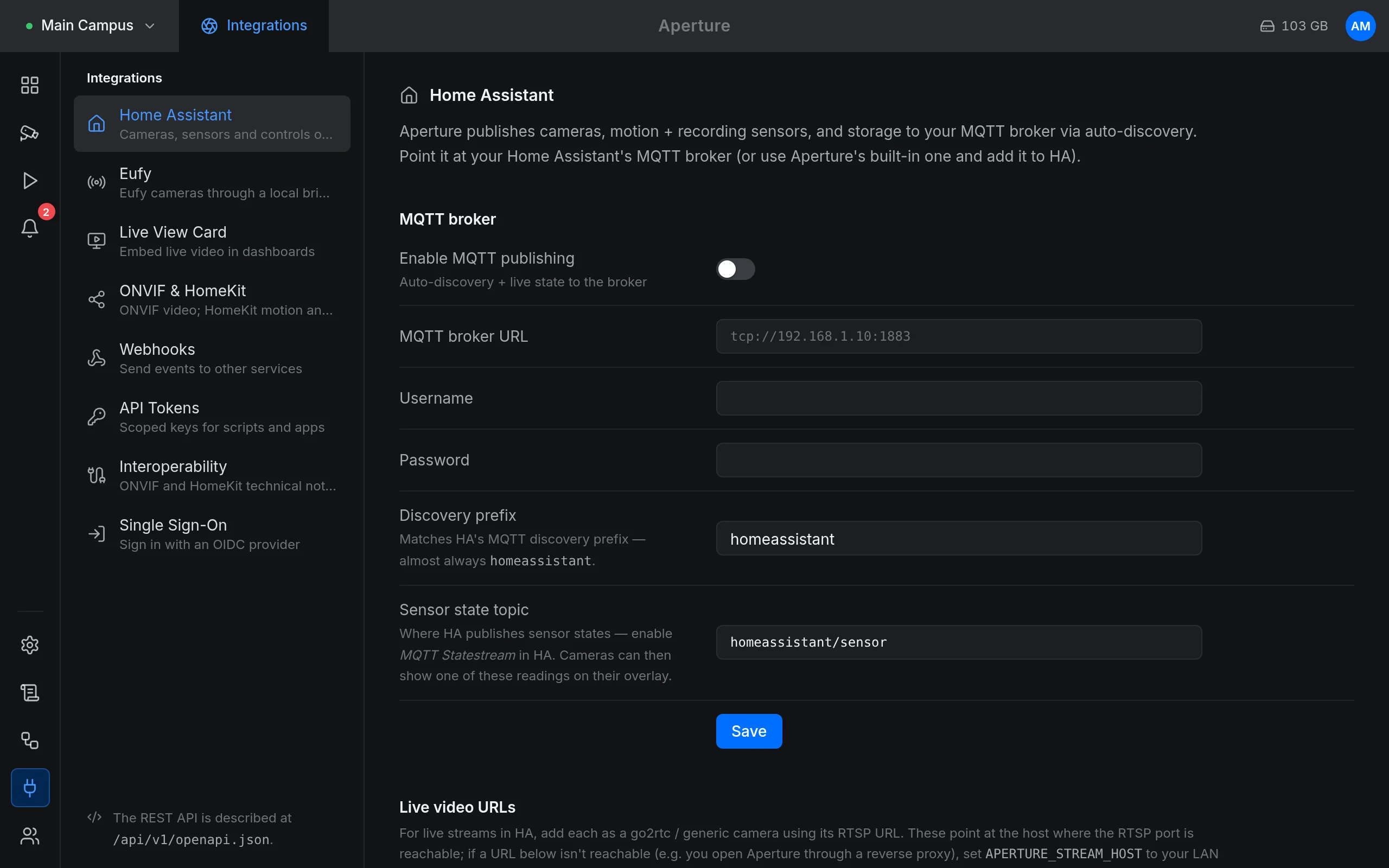
Section titled “1. Connect Aperture to the broker”- In Aperture, open Integrations and select Home Assistant.
- Switch on Enable MQTT publishing.
- Fill in the fields:
| Field | What to enter |
|---|---|
| MQTT broker URL | The broker’s address, for example tcp://192.168.1.10:1883. Left empty, Aperture uses APERTURE_MQTT_URL from /etc/aperture/aperture.env, which the installer sets to the local Mosquitto (tcp://127.0.0.1:1883). |
| Username / Password | The broker login, or empty for anonymous access. The saved password is never shown again; the field reads “Leave blank to keep”. |
| Discovery prefix | Home Assistant’s MQTT discovery prefix, almost always homeassistant. |
| Sensor state topic | Only for Home Assistant sensors on the camera overlay. The default homeassistant/sensor is fine otherwise. |
- Click Save. The badge at the top turns Connected once Aperture reaches the broker. Aperture retries on its own when the broker is away.
2. Let Home Assistant discover Aperture
Section titled “2. Let Home Assistant discover Aperture”If Home Assistant’s MQTT integration already uses the same broker, Aperture’s devices appear under Settings › Devices & services › MQTT within seconds.
If it does not, add the MQTT integration in Home Assistant and point it at the same broker. Discovery is on by default in the MQTT integration.
What Home Assistant gets
Section titled “What Home Assistant gets”Each camera becomes a device, named after the camera. The NVR itself becomes a device named after your Site name (Settings › General). While publishing is on, Integrations › Home Assistant summarises the camera entities under What Home Assistant gets.
Per camera
Section titled “Per camera”| Entity | Type | What it shows |
|---|---|---|
| Camera | camera |
A still image, refreshed every 10 seconds while the camera is enabled; it can be up to about 20 seconds old. For live video, see Live video in Home Assistant. |
| Motion | binary_sensor, class motion |
On while the camera has an open motion event or sees motion right now. This also works on cameras that record nothing. Checked every 2 seconds. |
| Recording | binary_sensor, class running |
On while the camera is set to record now: modes 24/7 continuous and Motion only, or Scheduled inside its window. It reports the intent, not that footage is arriving; Devices shows the latter. |
| Record mode | select |
never, motion, continuous or scheduled. Changing it in Home Assistant changes the camera’s Recording mode at once. scheduled is refused for a camera with no schedule. |
Presence from object recognition
Section titled “Presence from object recognition”On cameras that Aperture’s own object recognition watches, each device also gets:
| Entity | Type | What it shows |
|---|---|---|
| Person | binary_sensor, class occupancy |
A person is in view, also sitting still. |
| People | sensor (measurement) |
How many people the camera sees. |
| Vehicle | binary_sensor, class occupancy |
A vehicle is in view, moving or parked. |
| Parked vehicle | binary_sensor, class occupancy |
A vehicle stands still. |
| Animal | binary_sensor, class occupancy |
An animal is in view. |
| Package | binary_sensor |
A delivered parcel waits. Only on cameras set to watch for packages. |
Unlike Motion, these stay on while someone stands still, and turn off once nothing has been seen for 5 seconds. To make that work, recognition looks at every published camera it watches about every second (every few seconds on a CPU) while Home Assistant is connected, even when nothing moves. That costs processor or GPU time on every such camera; see Capacity.
Presence entities exist only while Aperture’s own object recognition runs (Settings › Detection) and watches that camera. An external detector does not produce them. Aperture re-sends discovery every five minutes and on every reconnect: a camera that recognition starts watching gets its presence entities then, and one it stops watching loses them.
For the NVR
Section titled “For the NVR”| Entity | Type | What it shows |
|---|---|---|
| Storage used | sensor, GB |
Footage recorded, in GB (1 GB = 1024³ bytes). Updated every 30 seconds. |
| Events today | sensor |
Events since local midnight in the site’s Timezone (see Site and weather), or in the server’s time zone while no site is saved. Updated every 30 seconds. |
| Armed | switch |
Aperture’s armed state. Switching it arms or disarms Aperture; see Alarms. |
Availability
Section titled “Availability”Every entity uses aperture/status as its availability topic. Aperture publishes online when it connects and offline when it shuts down; the broker publishes offline for it (MQTT “last will”) if Aperture disappears without saying goodbye. Home Assistant then shows the entities as unavailable.
Entity names
Section titled “Entity names”Home Assistant builds entity IDs from the device and entity names. A camera called “Front door” typically gets camera.front_door, binary_sensor.front_door_motion, select.front_door_record_mode and so on. Check the real IDs on the device page in Home Assistant. Renaming a camera in Aperture renames its device in Home Assistant at the next discovery pass; existing entity IDs stay as Home Assistant created them.
Control Aperture from Home Assistant
Section titled “Control Aperture from Home Assistant”The Record mode select and the Armed switch work in both directions. Under the hood they are MQTT command topics, which anything on the broker can use:
| Topic | Payload | Effect |
|---|---|---|
aperture/<camera id>/set/record_mode |
never, motion, continuous or scheduled |
Changes the camera’s recording mode. |
aperture/system/set/armed |
ON or true to arm, anything else to disarm |
Arms or disarms Aperture. |
aperture/<camera id>/snapshot/trigger |
anything | Publishes a fresh still to the camera entity now. |
For example, to arm Aperture from a Home Assistant script:
action: mqtt.publishdata: topic: aperture/system/set/armed payload: "ON"Automations in Aperture can also publish MQTT messages of their own through the same connection.
Live video in Home Assistant
Section titled “Live video in Home Assistant”The camera entity shows stills. For live video, add each camera’s RTSP restream to Home Assistant. Aperture lists them under Integrations › Home Assistant › Live video URLs, with a copy button per camera:
rtsp://192.168.1.10:8554/cam_<camera id>Add each URL as a camera in Home Assistant, either with the Generic Camera integration (the URL is the stream source) or as a stream in go2rtc if you use it with Home Assistant. The video comes from go2rtc’s restream, so the camera itself still sees only one connection.
These URLs must name an address Home Assistant can reach. Aperture builds them from APERTURE_STREAM_HOST in /etc/aperture/aperture.env; if it is empty, from the address you opened the web app on. Behind a reverse proxy that is the proxy’s name, which does not forward port 8554, so set APERTURE_STREAM_HOST to the server’s LAN address and restart Aperture. Details, and the fact that the restream has no login, are in ONVIF and RTSP.
Home Assistant sensors on the camera overlay
Section titled “Home Assistant sensors on the camera overlay”The camera overlay normally shows the outdoor weather at your site. A camera can show a Home Assistant thermometer instead, for example the temperature in the room it watches. The readings come from Home Assistant over MQTT, which needs Home Assistant’s MQTT Statestream integration. It is not on by default.
-
In Home Assistant, enable MQTT Statestream with attributes, for example in
configuration.yaml, and restart Home Assistant:mqtt_statestream:base_topic: homeassistantpublish_attributes: trueinclude:domains:- sensorpublish_attributesis required: Aperture recognises a thermometer by its unit or device class, which arrive as attributes. -
In Aperture, under Integrations › Home Assistant, set Sensor state topic to
<base_topic>/sensor. With the example above that is the default,homeassistant/sensor. Click Save. -
Wait for readings. Temperature sensors lists every thermometer Aperture has received, with its Reading and when it was Updated. Until one arrives it says “None received yet. Enable MQTT Statestream in Home Assistant and confirm the topic above.”
-
Open the camera’s Settings in Devices, and under Integrations pick the sensor in Overlay temperature. Click Save changes.
The overlay then shows a thermometer with the reading instead of the weather. Settings › General › Overview temperature does the same for the dashboard’s overview.
Things to know:
- Only temperature sensors with a numeric state are offered: device class
temperature, or a unit such as °C, °F or K. - Aperture subscribes to
<Sensor state topic>/+/stateand theunit_of_measurement,friendly_nameanddevice_classattributes next to it. The overlay setting stores the sensor’s object ID, such asgarage_temperature. - Readings are kept in memory only. After Aperture restarts, a sensor shows “(waiting for reading…)” until Home Assistant publishes it again.
- A camera’s overlay reading is shown to everyone who may see that camera: it is read per camera (
GET /api/v1/cameras/{id}/sensor), which reveals only the one sensor that camera shows. The full sensor list stays administrator-only, and so does Overview temperature on the dashboard, which reads it: other users see the outdoor weather there.
Keep a camera out of Home Assistant
Section titled “Keep a camera out of Home Assistant”Switch off Show in Home Assistant & HomeKit in the camera’s settings (under Integrations) and save. While Aperture is connected, it removes the camera’s device and entities from Home Assistant at once by clearing its retained topics. Switch it on again and the camera is announced again straight away.
Use this for cameras Home Assistant already has another way, such as through its own UniFi Protect integration. New UniFi Protect cameras start with the switch off. The same switch also keeps the camera out of HomeKit. It does not affect the ONVIF provider or the Live video URLs list.
A deleted camera is still in Home Assistant
Section titled “A deleted camera is still in Home Assistant”When you delete a camera, Aperture clears its retained topics on the broker, and Home Assistant removes the device. That only works while Aperture is connected. A camera deleted or hidden while the broker was unreachable leaves its device behind; the server log says “camera deleted while disconnected; Home Assistant keeps its device until cleared”.
To clean up:
-
In Home Assistant, open the device under Settings › Devices & services › MQTT and delete it.
-
If it comes back after Home Assistant restarts, its retained topics are still on the broker. Find the camera’s ID in the topics:
Terminal window mosquitto_sub -h 192.168.1.10 -t 'homeassistant/+/+/config' -v --retained-only -W 3 | grep aperture_ -
Clear every retained topic for that ID with an empty retained message:
Terminal window BROKER=192.168.1.10ID=<camera id>for t in binary_sensor/aperture_${ID}_motion binary_sensor/aperture_${ID}_recording \camera/aperture_${ID} select/aperture_${ID}_record_mode \binary_sensor/aperture_${ID}_person sensor/aperture_${ID}_people \binary_sensor/aperture_${ID}_vehicle binary_sensor/aperture_${ID}_animal \binary_sensor/aperture_${ID}_parked binary_sensor/aperture_${ID}_package; domosquitto_pub -h "$BROKER" -r -n -t "homeassistant/$t/config"donefor s in motion recording snapshot record_mode person people vehicle animal parked package; domosquitto_pub -h "$BROKER" -r -n -t "aperture/$ID/$s"doneAdd
-u <user> -P <password>to each command if your broker needs a login, and replacehomeassistantif you use another discovery prefix.
Topic reference
Section titled “Topic reference”| Topic | Retained | Content |
|---|---|---|
aperture/status |
yes | online or offline |
aperture/<id>/motion |
yes | ON / OFF |
aperture/<id>/recording |
yes | ON / OFF |
aperture/<id>/snapshot |
yes | JPEG image |
aperture/<id>/record_mode |
yes | never, motion, continuous, scheduled |
aperture/<id>/person, vehicle, animal, parked, package |
yes | ON / OFF |
aperture/<id>/people |
yes | a number |
aperture/system/storage_used_gb |
yes | GB, one decimal |
aperture/system/events_today |
yes | a number |
aperture/system/armed |
yes | ON / OFF |
<prefix>/<component>/aperture_<id>_<entity>/config |
yes | discovery config |
States are published when they change; record modes and the armed state are also re-sent every 30 seconds. Aperture connects with the client ID aperture-nvr, so only one Aperture can use a broker: a second one would keep disconnecting the first.
Example automation
Section titled “Example automation”automation: - alias: "Light on front-door motion" trigger: - platform: state entity_id: binary_sensor.front_door_motion to: "on" action: - service: light.turn_on target: entity_id: light.porchFor lights that should stay on while someone is there, trigger on the camera’s Person entity instead: it stays on while they stand still.
Troubleshooting
Section titled “Troubleshooting”- The badge stays Disconnected. Check the broker URL, the login and that the broker accepts connections from the Aperture server. The server log names the problem:
journalctl -u aperture | grep "home assistant"showsconnect failedorconnection lostwith the reason. - Connected, but nothing appears in Home Assistant. The Discovery prefix must match Home Assistant’s (normally
homeassistant), and Home Assistant’s MQTT integration must use the same broker. A camera with Show in Home Assistant & HomeKit off gets no entities. - Person, Vehicle and the other presence entities are missing. They need Aperture’s local object recognition running and watching that camera. Wait up to five minutes after switching it on.
- Everything shows as unavailable. Aperture is stopped or lost its connection; the broker has published
offlinefor it. - Live video URLs do not play in Home Assistant. The address is not reachable from Home Assistant. Set
APERTURE_STREAM_HOSTto the server’s LAN address and check that port 8554 is open between the two. - Temperature sensors stays empty. MQTT Statestream is off, sends to another broker, has no
publish_attributes: true, or itsbase_topicdoes not match Sensor state topic.
Related: ONVIF and RTSP · HomeKit · Automations · Object recognition