
Site, weather, sun and moon
The site profile says where your cameras are: a location, a time zone and the units you read. With it, Aperture records the weather alongside your footage, so an event from months ago still shows that it was 4 °C and raining, and it works out sunrise, sunset and the moon for any day. This page covers setting the profile, what it changes, what goes over the internet for it, and how it behaves offline.
All of it is optional. Without a location, the weather and sun parts of the app stay hidden and everything else works as before.
Set the location
Section titled “Set the location”An administrator sets the profile under Settings › Environment.
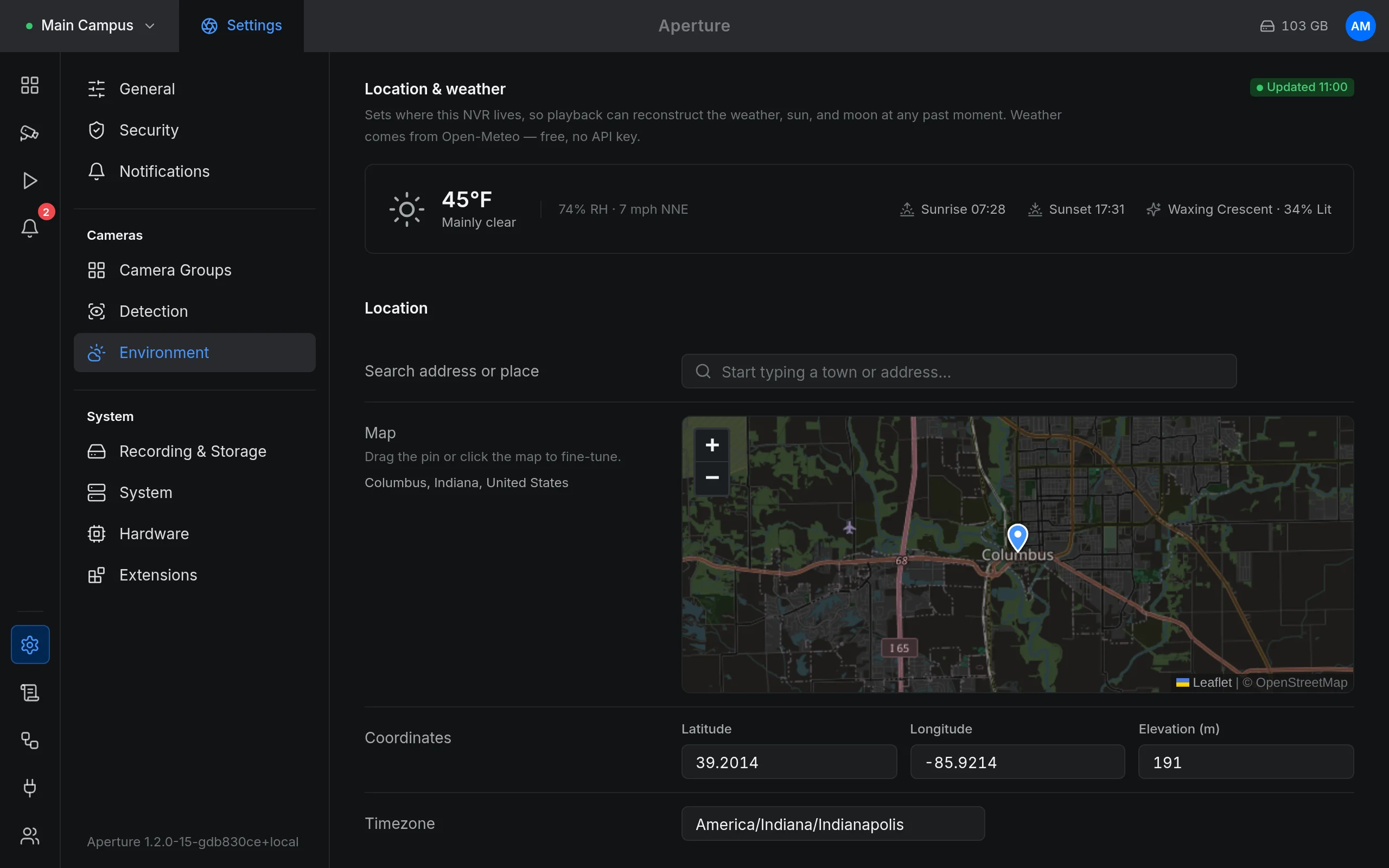
- In Search address or place, type at least two characters of a town or address. Pick a suggestion; it fills in the coordinates, elevation and time zone.
- Under Map, drag the pin or click the map to fine-tune the spot. Aperture looks up the time zone and elevation for the new point.
- Check Coordinates (Latitude, Longitude, Elevation (m)). You can also type them in, which is the way to set a location without searching.
- Check Timezone. It takes a time zone name such as
Europe/BerlinorAmerica/New_York; left empty, it is saved asUTC. - Under Units, choose Temperature (Celsius or Fahrenheit), Wind (m/s, km/h, mph or knots) and Pressure (hPa or inHg).
- Under Weather, leave Record weather history on to collect weather, and pick a Poll interval: every 5, 10 (the default), 15 or 30 minutes, or hourly.
- Choose Save.
The coordinates are required, and 0, 0 is refused as “not set”. Once saved, the top of the page shows the current conditions, today’s sunrise and sunset and the moon phase (for example “Waxing Gibbous · 82% lit”), and a status: “Updated” with the time of the last reading, “Connecting…”, or “Error” when the weather service could not be reached.
What the profile changes
Section titled “What the profile changes”| Setting | Used for |
|---|---|
| Location | Weather, sunrise and sunset, day and night |
| Time zone | Recording schedules, where “today” starts (coverage today, daily counts), sun and moon times, day and night for filters and rules |
| Units | Every temperature, wind and pressure reading in the app, for all users |
The time zone matters even if you never look at the weather. Recording schedules follow it rather than the server’s clock, so a server running on UTC still records your 22:00 to 06:00 window in local time, and daylight saving changes move nothing.
Two related settings live elsewhere:
- The clock. 24-hour clock under Settings › General › Preferences is a per-user preference (“These apply to your account on every device”). It is on by default.
- The site name. Site name under Settings › General is shown in the header and names the NVR device in Home Assistant. It defaults to “Home NVR”.
Weather history
Section titled “Weather history”With a location set and Record weather history on, Aperture asks Open-Meteo for the current conditions at every poll interval and stores each reading: temperature, feels-like temperature, humidity, dew point, pressure, wind speed, direction and gusts, precipitation, cloud cover and the weather condition. Open-Meteo is free and needs no account or API key.
After the first successful reading, Aperture also fetches the hourly history of the past 7 days for the location. Footage you recorded before setting the location, up to a week back, gets weather too. It does this each time Aperture starts and whenever you move the location; overlapping readings replace each other, so nothing is duplicated.
To show the weather at a moment in the past, Aperture uses the newest reading taken at or before that moment. Readings are small and are kept indefinitely. They are not part of a configuration backup.
Where weather, sun and moon appear
Section titled “Where weather, sun and moon appear”-
Live tiles and the camera viewer: a badge with the condition icon and temperature, plus the condition and wind in the larger viewer. A camera can show a Home Assistant sensor’s reading instead, for example an indoor thermometer.
-
The dashboard header: an icon, the temperature and the clock. Settings › General › Overview temperature can use a Home Assistant sensor instead of the outdoor weather.
-
Playback: the conditions at the playhead, reconstructed from history; day and night shading on the timeline (night, twilight and golden hour); and, if you switch on Weather ribbon on timeline in Settings › General › Preferences, a temperature and precipitation trend beside the timeline. The ribbon is off by default.
-
Alarms: each event card shows the weather icon and temperature at the time of the event, with a rain drop when it was raining. The Conditions filter narrows the list:
Filter Shows events where Rain precipitation was above 0 Night the event started before sunrise or after sunset Day the event started between sunrise and sunset Windy the wind was at least 8 m/s The filter appears once events carry conditions, which needs a location.
-
Notification rules: Only notify when… offers Daytime only or Nighttime only, and Only when raining. See Notifications.
-
Automations: Time (Any, Day or Night) and Only when raining. See Automations.
Rules and automations use the same sun times and weather history, and their conditions are ignored until a location is set.
Sun and moon are calculated on the server from the location and date, with no network involved: sunrise and sunset, the civil, nautical and astronomical twilights, golden hour, solar noon, and the moon’s phase and how much of it is lit. That makes the shading exact for any past day, offline too. The calculation is a port of the SunCalc library (internal/astro/astro.go).
What goes over the internet
Section titled “What goes over the internet”Nothing here contacts the internet until you open Settings › Environment or set a location.
| What | Who connects | To | When | What is sent |
|---|---|---|---|---|
| Current weather | the Aperture server | api.open-meteo.com |
every poll interval, only with a location set and Record weather history on | the coordinates |
| Weather history | the Aperture server | api.open-meteo.com |
once after each start or location change, after the first successful reading | the coordinates |
| Place search | the Aperture server | geocoding-api.open-meteo.com |
while you type in Search address or place | the text you typed |
| Time zone lookup | the Aperture server | api.open-meteo.com |
when you drag or click the map pin | the pin’s coordinates |
| Map tiles | your browser | *.tile.openstreetmap.org |
whenever Settings › Environment is open | requests for the map area shown, from your browser’s address |
Sun and moon need nothing from outside. To stop the weather requests, switch Record weather history off and choose Save. To avoid the place search, type the coordinates and time zone yourself. The map tiles load whenever the page is open; that request comes from the browser you use, not from the server.
The saved location is visible to every signed-in user, because the overlays and the timeline need it. See Privacy.
Offline
Section titled “Offline”Recording, live view, playback and alerts do not depend on any of this. When Open-Meteo cannot be reached:
- The status under Settings › Environment shows “Error”, and the log shows
weather: fetch failed. - The live readout keeps showing the last reading fetched since Aperture started, so after a long outage it is out of date. After a restart without internet, it stays hidden until a reading arrives.
- Playback and events show the last reading before each moment, so footage from an outage shows the conditions from before it. When Aperture next starts with internet access, the history fetch fills the gap if it lies within the last 7 days.
- Search address or place finds nothing, and dragging the pin keeps the previous time zone and elevation. Type the coordinates and the time zone instead.
- Sunrise, sunset, the moon, day and night shading and the day and night filters keep working.
Limits
Section titled “Limits”- The weather comes from Open-Meteo for the saved coordinates, not from a sensor at your house. Use a Home Assistant sensor on a camera when the exact local reading matters.
- History reaches back 7 days from when Aperture first fetches it. Older footage has no weather.
- In polar day and polar night there is no sunrise or sunset, so every event counts as Day for the filters and rules.
- One site per install: all cameras share one location and time zone.
Related: Playback · Alarms · Notifications · Privacy