
On your phone
On an iPhone, use the Aperture app. On Android and any other phone, Aperture runs in the browser and can be installed to the home screen so it opens like an app; most of this page is about that.
The iPhone app
Section titled “The iPhone app”Aperture for iPhone is free on the App Store. It needs iOS 18 and an Aperture server running 1.4 or newer.
- Install the app and open it.
- Sign in with your Aperture account, or pair it: in Aperture in a browser, open Settings › Security, click Show pairing code under Pair a phone, and scan the code with the app. A code works once and for five minutes.
- Turn on notifications in the app’s settings if you want alerts with a snapshot. They pass through Aperture’s relay encrypted, so the relay can’t read them; see the privacy policy.
The app connects straight to your server. At home it uses the server’s local address; away from home it needs your server’s public HTTPS address, set up as in Reverse proxy.
In the browser
Section titled “In the browser”Aperture has a layout made for phones: live view with today’s detections, a touch timeline in Playback, and the alarm feed, behind a tab bar at the bottom. It runs in the phone’s browser and can be installed to the home screen so it opens like an app. The rest of this page covers the mobile layout, installing, notifications, fullscreen, and the features that only work over HTTPS.
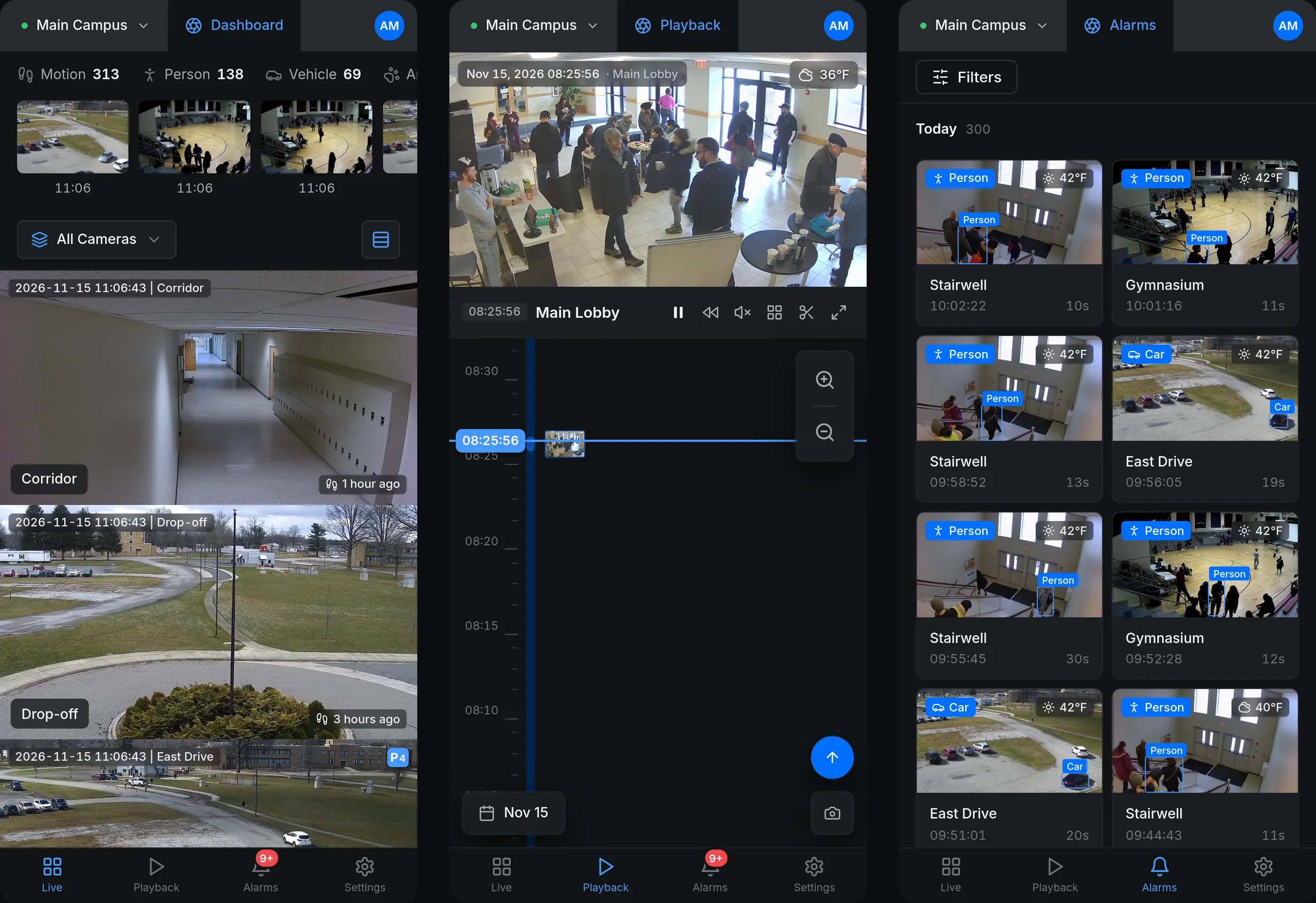
Aperture switches to the mobile layout whenever the window is narrower than 1024 pixels. That includes most tablets held upright and a desktop browser window made narrow; a phone turned sideways keeps the mobile layout.
What needs HTTPS
Section titled “What needs HTTPS”Live view, Playback and Alarms work over plain HTTP on your network. Installing, notifications and passkeys need the page to be served over HTTPS, because browsers only allow them on secure pages:
| Feature | Plain HTTP on your LAN | HTTPS |
|---|---|---|
| Live view, Playback, Alarms, Settings | Yes | Yes |
| Installing to the home screen as an app | No | Yes |
| Notifications while Aperture is open | No | Yes |
| Push notifications when Aperture is closed | No | Yes |
| Passkeys | No | Yes |
Aperture has no built-in HTTPS. Put it behind a reverse proxy with a certificate and set APERTURE_PUBLIC_URL to the HTTPS address; see Reverse proxy. For access from outside your home, a VPN to your network is the alternative that exposes nothing to the internet.
Installing as an app
Section titled “Installing as an app”Open Aperture’s HTTPS address in the phone’s browser and sign in. Then:
- iPhone and iPad: in Safari, tap the Share button, then Add to Home Screen, then Add.
- Android: in Chrome, open the menu and tap Install app (some versions say Add to Home screen).
The installed app is called “Aperture”, opens without the browser’s address bar, and can turn with the phone. It is still the same web app: it needs a connection to your server, has no offline mode, and is always the version the server runs, so there is nothing to update on the phone.
The mobile layout
Section titled “The mobile layout”The tab bar at the bottom has four entries: Live, Playback, Alarms and Settings. A red count on Alarms shows new events since you last opened it.
Administration pages that have their own entries in the desktop rail (Devices, Users, Integrations, Automations, Activity Log) are linked from Settings › General under Administration for administrators.
From top to bottom:
- Today’s detections. A row of counts for today: Motion always, and Person, Vehicle, Animal, Package and Audio when there were any. Tap it to open Alarms.
- Recent events. Thumbnails of up to 15 of today’s events with their times. Tap one to play it.
- The group selector on the left: All Cameras or one of the camera groups an administrator has set up.
- The view mode button on the right:
| View mode | Layout | Stream |
|---|---|---|
| List View | One camera per row, with date, time and camera name on the picture and the time since its last event today | Main stream |
| Grid View | Two columns | Sub stream |
| Compact Grid | Three columns | Sub stream |
The phone remembers your group and view mode. Tap a camera to open it in the same window as on the desktop, with object boxes, Snapshot, Fullscreen and View recordings; see Live view.
The desktop’s overview column, custom views and wall fullscreen are not part of the phone layout.
Playback
Section titled “Playback”The picture is at the top with the time and camera name over it, and the weather at that moment when a site location is set. Below it is a row of controls:
- LIVE, or the time at the playhead, and the camera name,
- Play / Pause and Back 30 seconds, for recorded footage,
- Unmute / Mute,
- Cameras, which slides in a strip of cameras to switch between,
- Export clip, which opens the export dialog,
- Fullscreen.
You can also open the camera strip by swiping down on the picture and close it by swiping up. Its thumbnails refresh every 5 seconds.
The rest of the screen is the timeline. It works as on the desktop (Playback): drag it with your finger to scrub, tap a point to jump there, let go near the present to spring back to live. Large Zoom in and Zoom out buttons sit at its top right, a round Jump to live button appears when you are in the past, the date button at the bottom left opens the date and time picker, and the camera button at the bottom right takes a Snapshot.
Not available on a phone: the events panel, multi-camera playback, grid search, picture zoom, playback speed, the quality selector and the Manage menu (copying a link to a moment, removing footage).
Alarms
Section titled “Alarms”The same event cards as on the desktop, two to a row. The filters open from the Filters button. See Events and alarms.
Fullscreen and rotation
Section titled “Fullscreen and rotation”iPhones do not let a web page put a single video into fullscreen, so on phones Aperture does it differently: Fullscreen turns the picture a quarter turn and stretches it over the whole screen, with a black background.
- Hold the phone upright and tap Fullscreen (in an opened camera, or in Playback).
- Turn the phone sideways to watch.
- Tap the black area or the Exit fullscreen button in the corner to leave.
This is made for a phone whose screen does not rotate by itself. If your phone turns the screen when you turn it, the picture ends up sideways and small: turn on rotation lock first.
Notifications
Section titled “Notifications”Aperture can alert you on your phone in two ways. Both are switched on per device under Settings › Notifications, in the This device section.
| Switch | When it alerts | What it needs |
|---|---|---|
| Notify on this device | While Aperture is open in a tab or as the installed app | HTTPS. No outside service is involved. |
| Also alert when closed (Web Push) | Also when Aperture is closed or the phone is locked | HTTPS, and the push service of your browser’s maker, which the server reaches over the internet |
Turning on Also alert when closed (Web Push) registers this phone. For alerts to arrive, you also need a Web Push channel and a rule that sends events to it; see Notifications. A notification names what was seen and the camera, shows the time, and opens Playback at the moment of the event when you tap it.
If the switch fails with a message about the push service, the browser blocks it. In Brave, turn on “Use Google services for push messaging” in its privacy settings and restart the browser.
Passkeys
Section titled “Passkeys”A passkey lets you sign in with your phone’s fingerprint, face or screen lock instead of a password. Add one under Settings › Security › Passkeys with Add passkey, then use Sign in with a passkey on the sign-in screen.
Passkeys need HTTPS, and a passkey belongs to the address you created it on: one made at https://nvr.example.com does not work when you open Aperture by its LAN address. Create it on the address you normally use. See Sign-in.
Coming back to the app
Section titled “Coming back to the app”Phones pause network connections of apps in the background. When you switch back to Aperture or unlock the phone, every live picture checks within about a second whether it is moving and reconnects if it is not, and recorded playback restarts its player if the phone stopped it. You should not need to reload the page.
Limits
Section titled “Limits”- No offline mode: the app needs a connection to your server.
- Notifications, installing and passkeys need HTTPS (see above).
- Whether a phone can play H.265 video depends on the phone and its browser. See Live view.
- Playback on a phone is single-camera only.
Related: Live view, Playback, Notifications, Reverse proxy.